 SupaFocus
How to Block Apps at Certain Times of Day
To block apps at certain times on iPhone, create a Focus Schedule in SupaFocus: pick the apps and websites, set the time window and repeat days — for example, social media blocked 9am–6pm on weekdays — and iOS enforces the block automatically every day.
Automate the decision
Starting a focus session still requires one good decision at the right moment. Schedules remove even that: you decide once — “no social media during work hours” — and your phone enforces it every single day. Habits built on automation don't depend on your mood.
Schedules that work
- Work Hours (9:00–18:00, Mon–Fri) — feeds and games blocked while you earn a living.
- Bedtime (22:00–7:00, daily) — no doomscrolling at night, no scroll before your feet hit the floor.
- Study Time (19:00–22:00, Sun–Thu) — exam season on autopilot.
- Family Dinner (18:30–20:00) — present at the table.
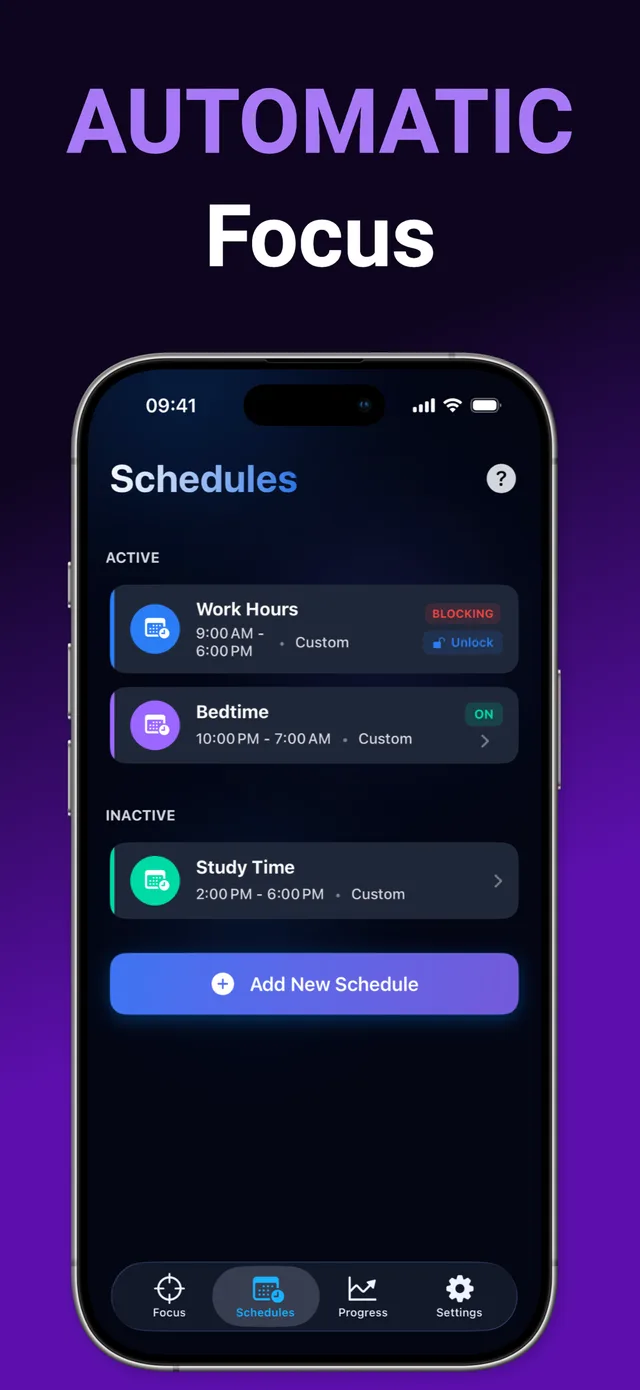
How to create an app-blocking schedule with SupaFocus
Open Schedules
Tap the Schedules tab in SupaFocus and choose Add New Schedule.
Pick apps and websites
Select what gets blocked during this window.
Set time and repeat days
E.g. 9:00–18:00 on weekdays, or 22:00–7:00 every day.
Activate it
The block starts and ends automatically. Free includes one schedule; Pro unlocks unlimited schedules.
Ready to try it?
SupaFocus is free on the App Store. Set up your first block in under a minute.
Download SupaFocus FreeFrequently asked questions
Can a schedule cross midnight, like 10pm to 7am?
Yes — overnight schedules are exactly what the Bedtime use case is for.
Can I have different schedules for weekdays and weekends?
Yes. Each schedule has its own repeat days, so you can run a strict weekday setup and a lighter weekend one (Pro for multiple schedules).
What if I need a blocked app during scheduled hours?
That depends on the commitment level you chose — Normal lets you end with confirmation, while Strict holds the line until the window ends.